Robot Status
Every robot in the DroneDeploy Robotics Portal shows a colored status indicator next to its name. The indicator provides high level status of the robot at a glance: is the robot connected, is anything wrong with it, and is it free to take on work?
This page explains what the indicator's colors mean, how to find out why a robot is showing a particular status, and how to control the robot's status.
The previous status indicator had only two states: gray when the robot was offline, and green when it was online. The new indicator is designed so that existing robots look the same as before:
- A robot that isn't set up to report its health or readiness, including a robot running an older Agent, still shows only ⚪ Offline or 🟢 Idle.
- The other colors appear only once the robot reports them, through its Agent components or configuration, a Flow, or a service call. See How the status is set.
- The exception is 🔴⚪ Degraded Connectivity, which can appear on any robot. It shows only when the robot is partly connected to the Platform, a situation the previous indicator couldn't detect. In that situation, the previous indicator could show a status that didn't match the robot's actual connectivity. See Platform connectivity to find out which part of the connection is at fault.
Where the indicator appears
The status indicator is shown wherever a robot is listed or selected, including:
- the list of robots in a project;
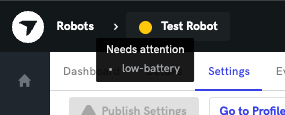
- the breadcrumb at the top of each of a robot's pages;
- the robot search box;
- robot lists within operations, dashboards and workflows.
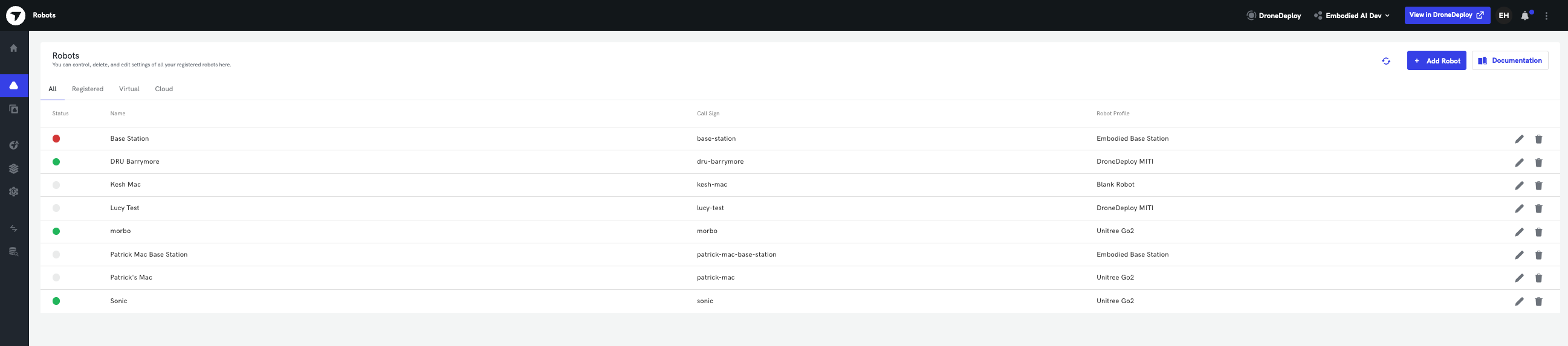
Hover over the indicator to see a short description of the status, along with any reasons the robot has given for it.
What the colors mean
The indicator combines three pieces of information about the robot:
- Connectivity — whether the robot is connected to the Platform.
- Health — whether anything is wrong with the robot.
- Readiness — whether the robot is currently busy.
Connectivity is checked first, because a robot's reported health can't be trusted if the Platform isn't hearing from it properly. Health is checked next, and readiness only matters once the robot is connected and healthy.
| Indicator | Status | Meaning |
|---|---|---|
| ⚪ Solid gray | Offline | The robot isn't connected to the Platform. If the robot is showing as offline unexpectedly, please confirm that the Agent is running and the robot is connected to the internet. |
| 🔴⚪ Flashing red and gray | Degraded Connectivity | The robot is only partly connected: some parts of the Platform can reach it and others can't. This usually indicates misconfiguration, or problems with the robot's networking; if the robot is configured correctly, and the behavior persists, please contact support. |
| 🔴 Solid red | Critical | The robot is connected, but reports a problem that needs immediate attention. |
| 🟡 Solid yellow | Abnormal | The robot is connected and still working, but reports something that needs attention. |
| 🟢⚪ Flashing green and gray | Unknown | The robot is connected, but its health hasn't been determined. This usually means the robot is not reporting status in the manner you have configured the Agent to expect. |
| 🔵 Solid blue | Busy | The robot is connected and healthy, and is busy — for example, part-way through a mission. |
| 🟢 Solid green | Idle | The robot is connected and healthy, and is not busy. |
The robot's status with respect to connectivity to the Robotics Platform is determined automatically, but the definition of what constitutes health and readiness is configurable:
By default, a connected robot will report 🟢 Idle whenever it is online. It will only display other status values if configured or instructed otherwise.
A few things worth knowing:
- Only the states of ⚪ Offline, or 🔴⚪ Degraded Connectivity are associated with the robot's connection to the Robotics Platform.
- States 🔴 Critical, 🟡 Abnormal, 🟢⚪ Unknown, 🔵 Busy, or 🟢 Idle are driven by data received from the robot; if you see these then (a) the robot is connected to the Platform; and (b) the reported status is a function of the Agent's configuration.
- The status indicator may briefly flash 🟢⚪ Unknown or 🔴⚪ Degraded Connectivity when first loading a new page; the indicator should settle to the correct color within a few seconds.
- Health outranks readiness: a busy robot with a problem shows 🔴 Critical or 🟡 Abnormal, not 🔵 Busy. Once the problem clears, it shows 🔵 Busy again.
Viewing status details
The indicator and its tooltip give a summary; the robot's Details tab shows the full picture. Open the robot, select the Details tab, and find the Status card.
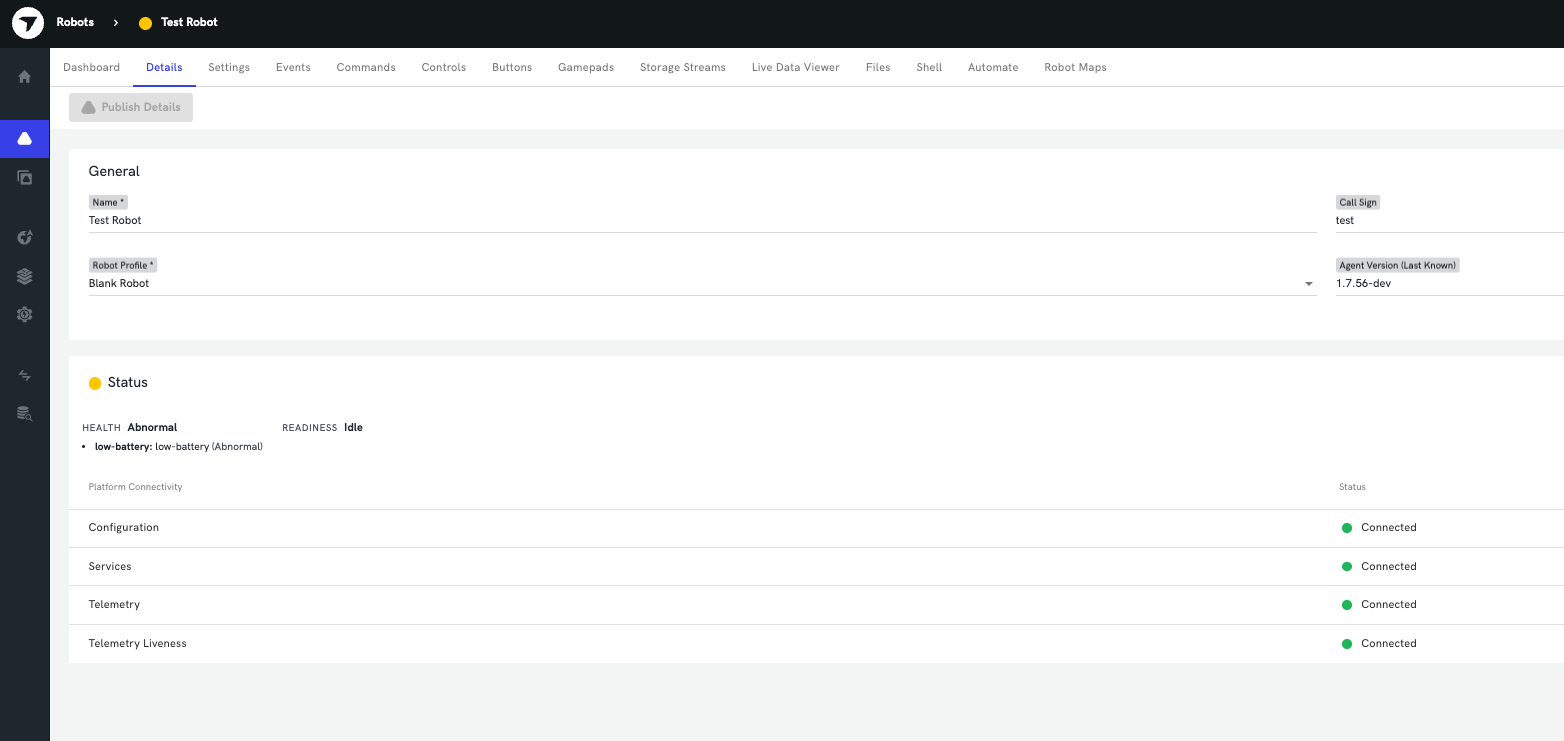
The Status card has three parts.
Health and readiness
The robot's current Health (🟢 Normal, 🟡 Abnormal, 🔴 Critical or 🟢⚪ Unknown) and Readiness (🟢 Idle, 🔵 Busy or 🟢⚪ Unknown) are shown at the top of the card.
Beneath each, the card lists the reasons the robot has given, one per line, in the form source: reason (value). The source identifies what raised it — for example a component of the Agent, a status rule in the robot's configuration, or a Flow. Each value is that source's own opinion; the robot's overall status is the most severe of them.
For example, if a battery monitor reports 🟡 Abnormal with the reason "battery below 20%", the robot's health is 🟡 Abnormal, even if everything else reports 🟢 Normal.
Platform connectivity
The Platform Connectivity table shows the robot's connection to each part of the Platform:
| Row | What it means |
|---|---|
| Configuration | The robot is connected to the Platform's configuration service. |
| Services | The robot is connected to the Platform's services broker, used for Services. |
| Telemetry | The robot is connected to the Platform's telemetry broker. |
| Telemetry Liveness | Telemetry from the robot is actually arriving. |
| Virtual Robot Deployment | Virtual robots only: whether the robot's deployment succeeded. |
Each row reads Connected, Disconnected, Failed or Unknown. Unknown means that part of the Platform hasn't reported yet, and doesn't affect the indicator.
When a robot shows 🔴⚪ Degraded Connectivity, this table tells you which part is at fault. A common example: Telemetry is Connected but Telemetry Liveness is Disconnected. The robot is connected to the telemetry broker, but no telemetry is arriving from it - this can be indicative of certain types of networking problems on the robot causing disruption to new TCP connections.
How the status is set
A robot's health and readiness are reported by the DroneDeploy Agent running on the robot. The Agent collects opinions from any number of sources, called contributors, and reports the most severe of them:
- for health, 🔴 Critical outranks 🟡 Abnormal, which outranks 🟢 Normal;
- for readiness, 🔵 Busy outranks 🟢 Idle.
So a single contributor reporting 🔴 Critical makes the robot 🔴 Critical, and a single contributor reporting 🔵 Busy makes the robot 🔵 Busy, whatever the others say. If no contributor has an opinion, a default from the robot's configuration is used.
There are several kinds of contributor.
Agent components
Some Agent components report status directly, based on what they know about the robot. For example, a component that runs missions can mark the robot 🔵 Busy while a mission is in progress.
Status rules in the robot's configuration
A robot's configuration can include rules that derive health or readiness from the robot's existing telemetry — for example, marking the robot 🔵 Busy whenever a mission-state topic reports an active mission. These rules, and the defaults used when nothing has an opinion, are set up in the Diagnostics component. See Robot status reporting for how to configure them.
Flows
A Flow running on the robot can set the robot's status, as well as read it and wait for it to change. A common use is to mark the robot 🔵 Busy for the duration of a mission: the robot stays 🔵 Busy until the Flow ends, however it ends. See Robot Status in Flows for the nodes and how to use them.
Service calls
Any other caller — for example a script, or an operator using the Live Data Viewer — can contribute a status by calling the Diagnostics component's setHealth and setReadiness services. See Setting status manually.
Unlike a Flow's contribution, a contribution made by a service call isn't withdrawn automatically. It remains until it's set again under the same id, or until the Agent restarts. To withdraw it, set it to unknown. For marking the robot busy during a mission, prefer the Set Robot Busy Flow node.